 Australia
 Belgium
 Brasil
 Canada
 Česká republika
 Chile
Chile Danmark
 Deutschland
 España
 France
 Ireland
 Italia
 Kýpros
 México
 Nederland
 New Zealand
 Norge
Norge Österreich
 Polska
 South Africa
 Suomi
Suomi Sverige
 Switzerland
 Taiwan
 Türkiye
 United Arab Emirates
 United Kingdom
  United States
 Ελλάδα
Mobile Tickets
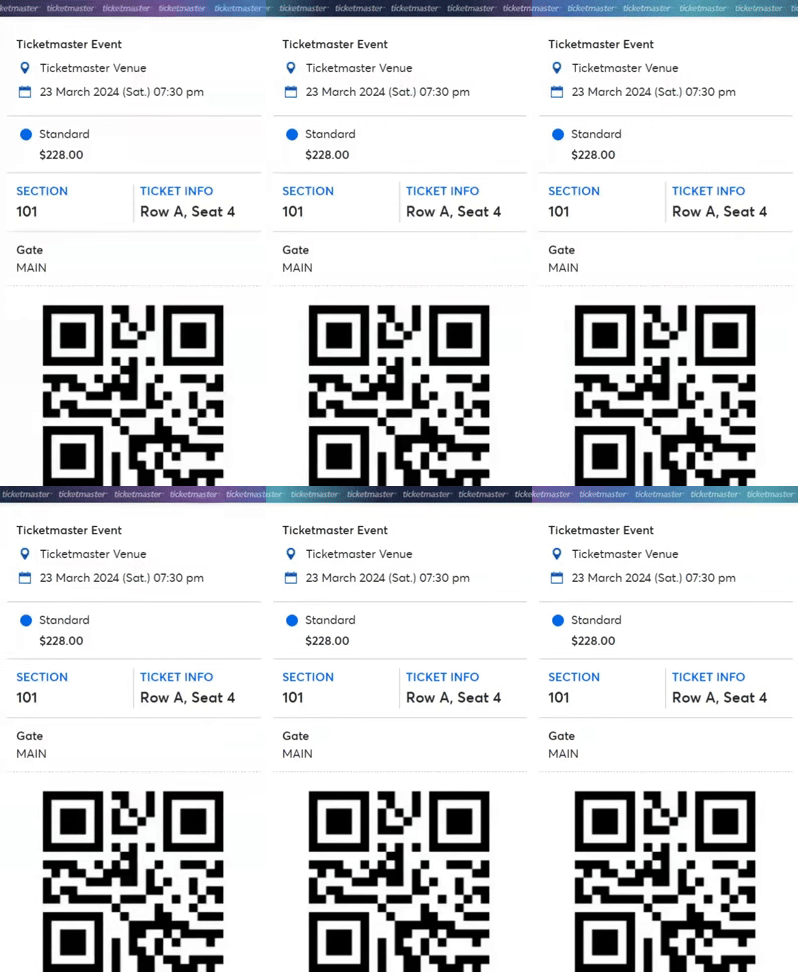
Mobile tickets are accessible directly on your phone. No need to print or search through your emails - find them in your Ticketmaster account.
How Do I Use Them?

1. Sign into your Ticketmaster account

2. Your ticket will be in your My Tickets
3. Choose 'Transfer Tickets'

4. Copy and send the transfer code to your friend to accept their ticket

5. Scan your tickets at the venue



6. Enjoy the show!
What’s So Good About Mobile Tickets?
Less Waiting
You no longer need to wait for your tickets in the post. They're saved in your account as soon as you buy them. For some events, your mobile barcodes may not be available instantly. Don't worry, you'll have your ticket on your phone by event day.
Ticket Transfers
Are you the organised one who buys tickets for everyone else? Mobile tickets let you transfer directly to your group, so you can relax and head in to the venue completely stress-free.
The Trees Will Thank You
Paperless tickets are an easy way to go green. Find your ticket in your Ticketmaster account for quick and easy entry to the venue.
Transfer Tickets in Three Easy Steps
- 1. In your Ticketmaster account, find the event you'd like to transfer tickets for.
- 2. Click 'Transfer', select the ticket(s) you'd like to send and click ‘Submit’.
- 3. Copy the transfer code and send it to your friend to accept their tickets in their account.

Need to cancel a transfer? If the ticket hasn't been accepted, there's still time! Simply select the ticket and ‘Cancel Transfer’
ACCEPTING TRANSFERRED TICKETS IS SIMPLE

- 1. In your Ticketmaster Account, click ‘My Account’ in the top right and select ‘Receive Transfer’.
- 2. Enter the unique transfer code received from your friend and click ‘Submit’.
- 3. Tickets to be transferred will be listed. After confirming your tickets, click ‘Accept Ticket Transfer’ to accept the ticket(s).
- 4. View your tickets by clicking ‘Received’ in your My Tickets.
Don’t have a Ticketmaster account? Create one if you are new to Ticketmaster in order to accept your transferred tickets.
FAQs
Mobile tickets are easier, safer and better than printouts or paper tickets. Here are some answers to questions that are often asked.
-
Screenshot of tickets are not allowed. A mobile ticket must be provided on your mobile phone/device to gain entry. Additionally, you can't forward tickets using a screenshot.
-
If you lose your phone, have a cracked screen, or run out of battery - don't worry. Have your ID and order number ready and seek assistance at the Box Office / Ticket Resolution desk.
-
It’s easy, just follow these steps:
- Sign in to your Ticketmaster Account.
- Navigate to your event by clicking My Account in the top right and clicking My Tickets.
- Find the event within your tickets and click ‘Transfer’
- Click Transfer.
NOTE: If the Transfer button is not displayed, your tickets are not eligible for transfer. - Select the tickets you'd like to transfer and click Submit.
- Once the transfer is ready, a unique transfer code for your friend to accept the ticket(s) will be generated and displayed.
- Copy the transfer code by clicking on the Copy symbol. Send the transfer code to your friend so that they can accept the ticket(s) on their account. Once accepted, the ticket(s) will no longer be available in your account.
-
Accepting tickets is easy! Follow these steps and you’ll have your tickets in no time. It’s always a good idea that you know and trust the person who's transferring tickets to you.
- Sign in to your Ticketmaster Account. Create one if you are new* to Ticketmaster.
- Click My Account in the top right and click Receive Transfer.
- Enter the unique transfer code received from your friend and click Submit.
- Tickets to be transferred will be listed. Please confirm that the tickets are correct before accepting them.
- Click on Accept Ticket Transfer to accept the ticket(s).
- View your tickets by clicking Received under the My Tickets tab.
*You need a Ticketmaster account in order to accept transferred ticket(s).
-
Ticket Transfers can only be cancelled if your friend has not accepted the tickets. Here's how you can do it:
- Sign in to your Ticketmaster Account.
- Navigate to My Account and click Transfer History to view your transfers.
- Search for the transfer that you would like to cancel. Click on View Details to confirm these are the correct tickets. If the transfer has not been accepted by the recipient, the displayed status will show as “Transfer Pending”. Please keep in mind that you will not be able to cancel a transfer after the tickets have been accepted, but your friend can always transfer them back to you!
- Click Cancel Transfer.
- Confirm that you wish to cancel the transfer by selecting OK.
- Your ticket will be returned to your account.
Re-transfer of ticket(s) will only be possible after you've successfully cancelled a transfer.